Sciometa POS · How-to guide
Setting Up a Kiosk
Subscribe a restaurant, create the kiosk display, and pair the tablet so customers can order for themselves.
Tätä ohjetta ei ole vielä saatavilla omalla kielelläsi, joten näytämme englanninkielisen version.
Subscribe the restaurant
The Kiosk Self-Order System is subscribed per restaurant, not per organisation. A restaurant without it cannot run a kiosk even though the screen is visible in the dashboard.
Go to Self Order SystemKiosk Displays. If any restaurant is missing the subscription, a banner at the top names it.
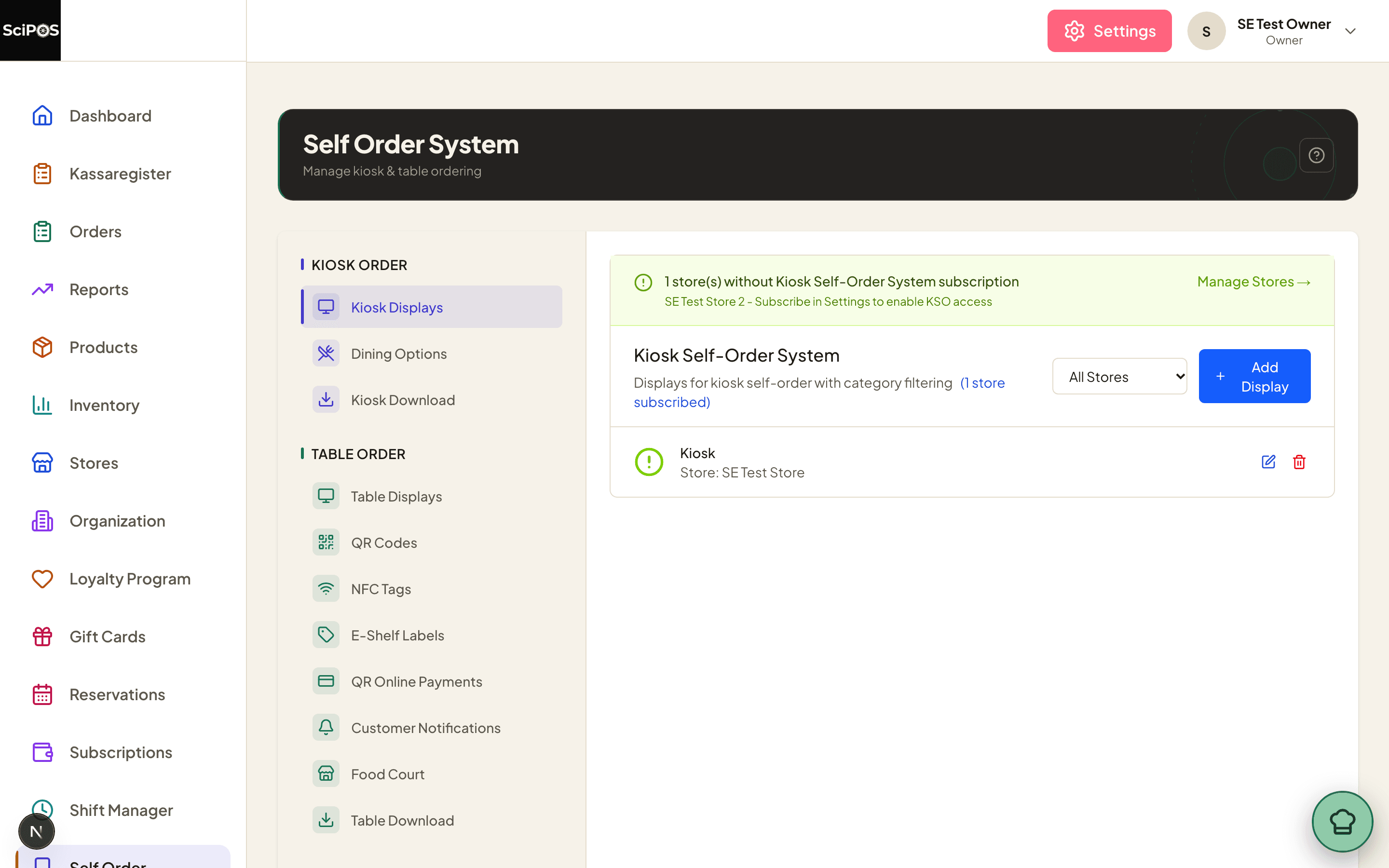
Use Manage Stores on the banner to subscribe, then come back to this screen.
Create the display
Select Add Display and fill in the form. The important fields:
| Field | What to enter |
|---|---|
| Name | How this kiosk is identified in the dashboard — KSO Display 1. Use something that says where it physically stands if you have more than one. |
| Select Store | Which restaurant the orders belong to. |
| Dining Options | Which choices the customer is offered — dine-in, takeaway, or both. |
| Order Assignment Mode | How an order is tied to a customer: a manual order number, or a table chosen from the table map. |
| Payment Terminal | The card terminal this kiosk will use. See step 4. |
Further switches cover the payment methods the kiosk accepts — gift card, Edenred, Epassi — and the appearance of the screen. All of them can be changed later without re-pairing the tablet.
Install and pair the app
This happens on the tablet itself.
- Install the KSO app. The Kiosk Download section of the same dashboard page has the download.
- Open the app and sign in with the same email and password used for the POS.
- Pair the tablet with the display you created by scanning the QR code shown in the POS app.
- Set a passcode for the app's settings screen, so a customer cannot reach them.
Connect the terminal and printer
Still on the tablet:
- Payment terminal — connect it to the terminal chosen in step 2. A kiosk that cannot reach its terminal cannot take payment, so this is worth testing before opening.
- Printer — connect to the WiFi printer that should produce the customer's receipt.
- Camera — only if you are using the beeper system (below). Grant the app camera permission when asked.
What the customer does
- Chooses a language.
- Chooses a dining option — the ones you enabled in step 2.
- Selects items, with extras and sizes offered exactly as on the till.
- Reviews the order and pays at the kiosk.
- Takes a beeper with a call number, if you use them, and waits to be called.
Kiosk orders appear in the kitchen display like any other, and their order numbers carry KSO so staff can tell where they came from.
The beeper system
Beepers let a customer sit down rather than wait at the counter.
- Mount a USB camera above the stack of beepers.
- Print the matching ArUco marker for each beeper and attach it.
The kiosk reads the marker as the customer takes a beeper, and ties that beeper to the order's call number.
Still not working?
| What you see | Most likely cause |
|---|---|
| A restaurant cannot be chosen when adding a display | It has no Kiosk Self-Order System subscription (Step 1). The banner at the top of Kiosk Displays names it. |
| The tablet cannot find a display to pair with | No display has been created for that restaurant yet (Step 2), or the app is signed in to a different organisation. |
| A product is visible at the till but not on the kiosk | Products are enabled per channel. Check that the item is available for the kiosk, and that it is not set to out of stock. |
| The kiosk cannot take payment | No Payment Terminal is chosen for that display (Step 2), or the tablet has lost its connection to the terminal. |
| Orders are not reaching the kitchen | The kiosk and the kitchen display must be on the same network. Check the kiosk is online. |