Sciometa POS · How-to guide
Taking Reservations
Stop bookings arriving once you are full, close a day or a time range by hand, and let the system assign tables.
Tätä ohjetta ei ole vielä saatavilla omalla kielelläsi, joten näytämme englanninkielisen version.
Set the three limits
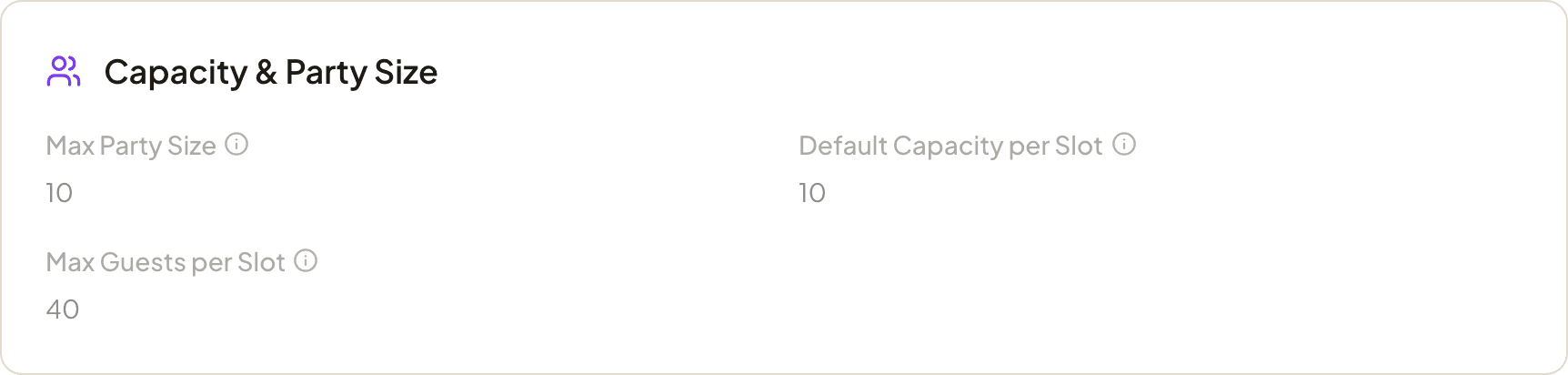
All three live in ReservationsStore SettingsBooking Rules, in two cards: Slot & Duration at the top, and Capacity & Party Size below it.
| Setting | Card | What it controls |
|---|---|---|
| Default Capacity per Slot | Capacity & Party Size | How many bookings are allowed in one time slot. Set it to 5 and once five parties hold 18:00, that slot closes. |
| Max Guests per Slot | Capacity & Party Size | The total number of guests allowed in one slot. Set it to 20 and, with 18 guests already booked, a party of 3 no longer fits. |
| Reservation Duration | Slot & Duration | How long a booking occupies its table, in minutes. This is what makes overlapping periods work correctly. |
The same card also carries Max Party Size — the largest single booking you will take online. The guest's party-size picker stops at this number, so a larger group has to contact you directly. Set it to the biggest table (or combination) you can actually seat.
Check that overlaps behave
Duration is the setting that does the work. With Reservation Duration at 90 minutes, a table booked at 16:00 stays occupied until 17:30 — so that table is not offered at 16:30 or 17:00.
A Saturday with capacity for 10 tables and a 90-minute duration runs like this:
| Time | What happens |
|---|---|
| 16:00 | 10 tables booked → slot closed |
| 16:30 | all 10 still seated from 16:00 → slot closed |
| 17:30 | the 16:00 guests finish, tables free up → bookable again |
| 19:30 | the evening rush clears → bookable |
If you use a table map, the system also counts your actual tables and closes the slot when every table is taken during that window — even if the slot limits above have not been reached.
A slot that has reached any limit simply stops appearing on your booking page. Guests cannot select it, so they are never shown a time you cannot honour.
Close a day, or part of one
Use a block whenever you know in advance that bookings will not work — a private event, a holiday, a staff shortage — regardless of how much capacity is technically free.
Everything here lives in ReservationsStore SettingsSpecial Dates, under Blocked Dates & Special Openings.
To close a whole day: set Type to Block, choose the date under Start Date, optionally add a reason so your team knows why, and add it.
To close part of a day: switch on the time-range option and enter a start and end time — 16:00 to 19:30 for a private function, say. Bookings outside that window continue as normal.
To close several days: fill in the optional End Date. One rule covers a continuous period of up to 365 days.
To open a day you are normally closed: set Type to Special Opening and give it a start and end time. This overrides both your regular opening hours and any block covering that date.
To reopen a date, delete the rule from the list — the date returns to your normal opening hours immediately.
Give guests the booking link
Open ReservationsBooking URL. This is the address guests book through — put it on your website, your social profiles and your Google listing.
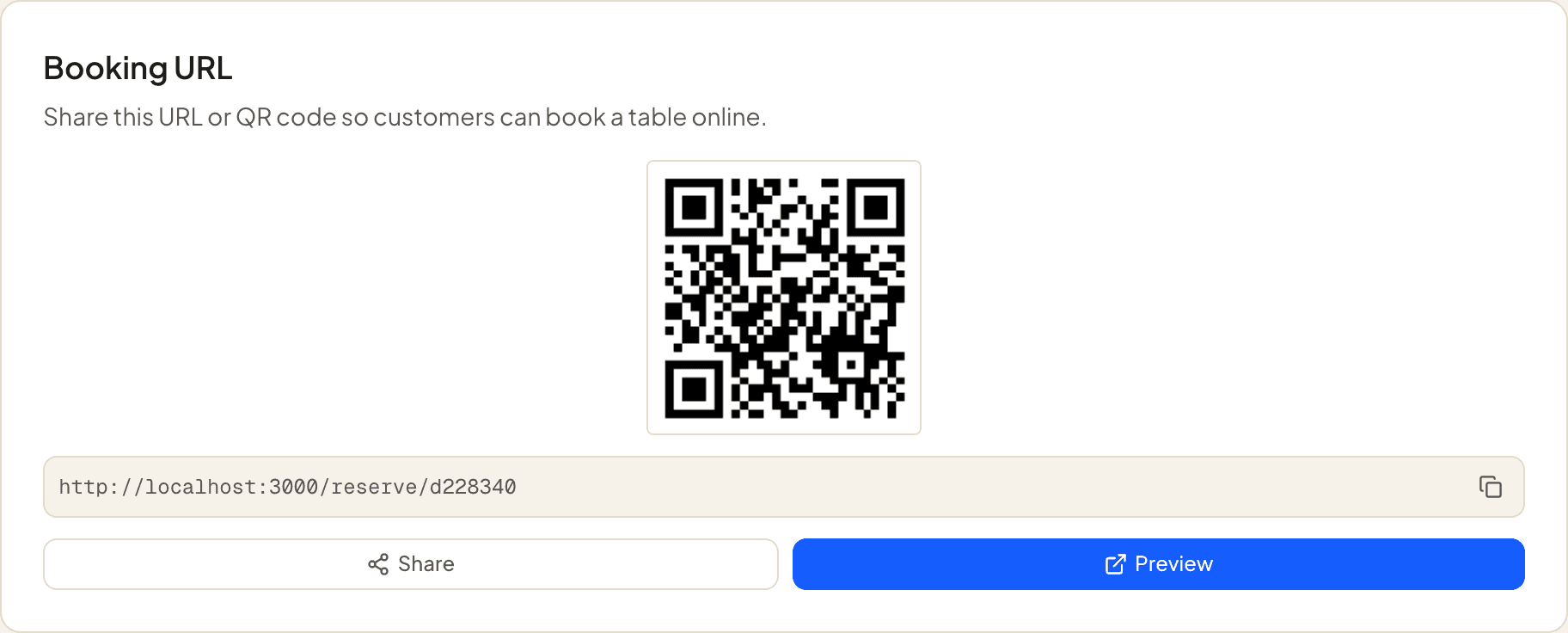
Use Preview whenever you change a setting — it opens the live booking page, which is the only place that shows what the change actually did. Further down the same tab there is an Embed on your website section, for putting the booking form inside your own site rather than linking out to it.
A guest picks a party size and a date, then a time, then enters their details:
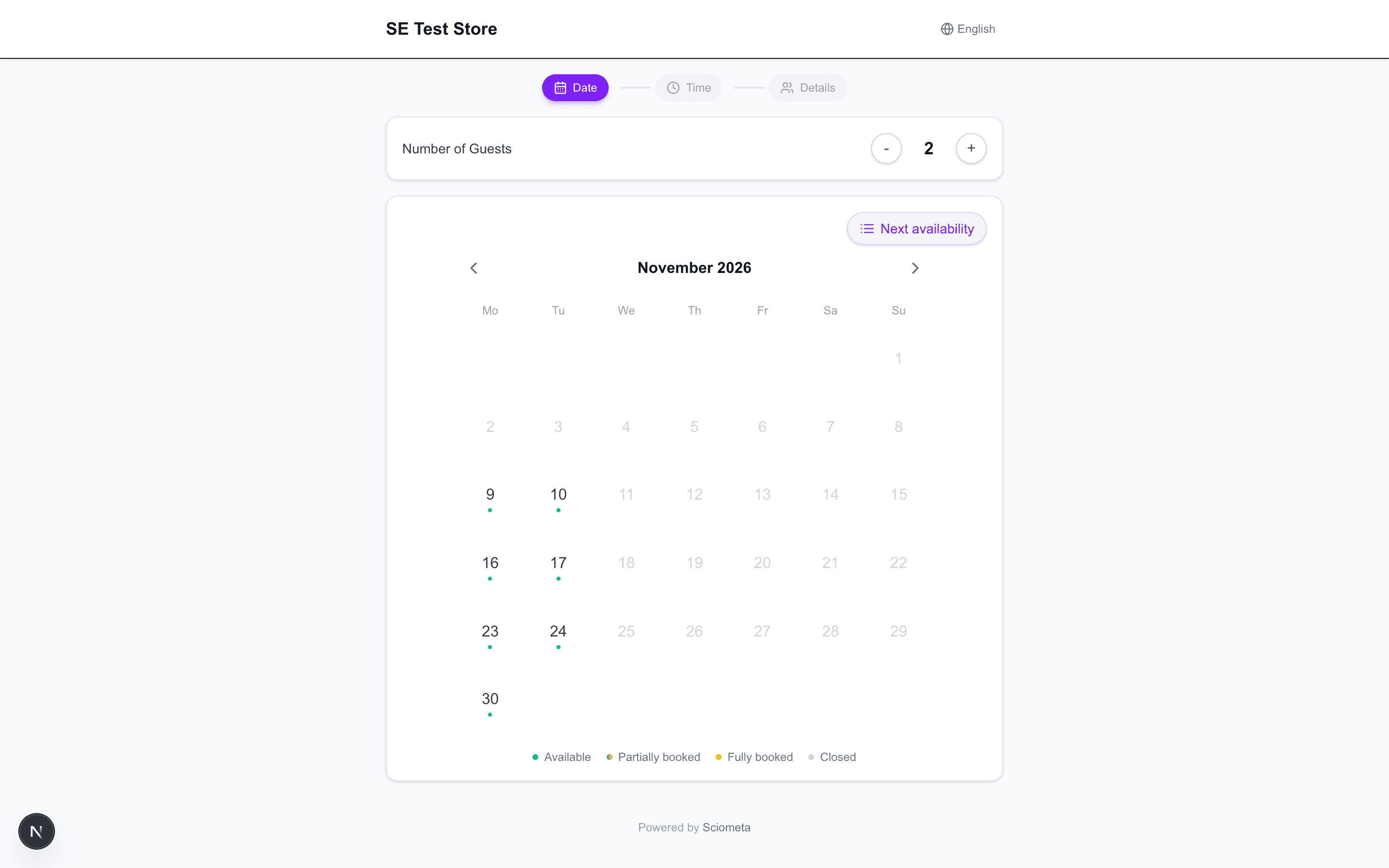
The calendar only opens dates inside your booking window, so a guest cannot book a year ahead or a day you are closed. On the next step, times that have hit any of your limits are not listed at all — a guest is never shown a slot you cannot honour.
Letting the system assign tables
Tables can be assigned by hand — open a booking, click the tables on the map, save — and reassigned the same way whenever a party size changes.
The system can also choose for you. It is off until you switch it on, in Store SettingsBooking Rules:
| Setting | What it does |
|---|---|
| Auto-assign tables | Picks a table for every new booking. Without this, nothing is assigned automatically and the rest of this section does not apply. |
| Combine tables for large parties | Lets a party be seated across several tables when no single table is big enough. Turn it off if you never push tables together. |
| Max combination | The most tables one booking may occupy. A longer combination is ignored until you raise the number. |
It looks for one table first — the smallest that still seats the party, so a couple goes to a 2-top rather than the 6-top. Only when no single table fits does it consider combinations, and only ones you have declared. If nothing fits, the booking is left without a table for staff to place by hand; it is never refused for this reason alone.
Declaring which tables may be joined is a one-off job in Store SettingsTables: choose Add join, tick two or more tables, set Seats when joined and save.
The system cannot see your room — it knows table numbers and seat counts, not which tables sit either side of a walkway. A table may appear in more than one combination: declaring 10+13 and 10+11 means both pairings are available, not that 11+13 may be joined.
A first-time setup
Work through this once and the automatic protection is active from then on.
| Step | Where | |
|---|---|---|
| ☐ | Set the reservation duration to how long a table is realistically occupied — typically 90 to 120 minutes. | Store Settings → Booking Rules |
| ☐ | Set your capacity per slot to the number of parties you can seat at one time. | Store Settings → Booking Rules |
| ☐ | Set your maximum guests per slot to your realistic covers for one seating. | Store Settings → Booking Rules |
| ☐ | Check the table map matches your actual floor plan, if you use one. | Table |
| ☐ | Declare which tables can be joined, and what each combination really seats. | Store Settings → Tables |
| ☐ | Turn on automatic assignment, once the joins above are in place. | Store Settings → Booking Rules |
| ☐ | Block known closures — holidays, private events, planned breaks. | Store Settings → Special Dates |
Worth testing: open your own booking page and try to book a period you know is full. If the slot does not appear, your limits are working. If it is still offered, one of the capacity fields is empty.
Still not working?
| What you see | Most likely cause |
|---|---|
| Guests can still book a time when we are full | One of the three capacity fields is empty, which means no limit. Check Capacity & Party Size. |
| A table is offered again before the previous party has left | Reservation Duration is shorter than a meal actually takes. Raise it to the time a table is really occupied. |
| We cannot take new bookings, but old ones are still there | Reservations needs the Basic plan or higher for that restaurant. Existing bookings stay readable and can still be seated or cancelled — only new ones are refused. |
| Our booking page says reservations are not enabled | Either the store is not subscribed, or reservations are switched off for it. Guests are shown the same message for both. |
| A setting saved in the dashboard does not change what guests see | Check you saved it for the right store — Store Settings and Org Defaults are separate, and a store setting overrides the organisation one. |
| Large parties are never assigned a table automatically | No table joins are declared, or the combination needs more tables than Max combination allows. |
| A blocked holiday still takes a booking for one evening | A Special Opening on that date overrides the block. That is what it is for — delete it if it was not intended. |