Sciometa POS · How-to guide
Tracking Stock
Describe the cartons you buy, receive a delivery, and let every sale take stock off automatically — with low-stock and expiry alerts.
Tätä ohjetta ei ole vielä saatavilla omalla kielelläsi, joten näytämme englanninkielisen version.
Turn on tracking for the product
Open Products, edit the product, and expand Inventory & Attributes near the bottom of the form. Tick Track inventory levels for this product and save.
Only tracked products can be linked to a carton — an untracked product does not appear in the carton's product list at all, which is the most common reason a product "cannot be found" in step 2.
There is a second tick box underneath, Auto out-of-stock from inventory. Leave it off unless you want the till to stop selling the product the moment its stock reaches zero at a store. With it on, the product is marked out of stock at that store automatically and comes back when stock is received again. Off, the stock count still goes down but staff decide when to mark something sold out.
Describe the carton
Go to InventoryCarton Management and select New Carton.
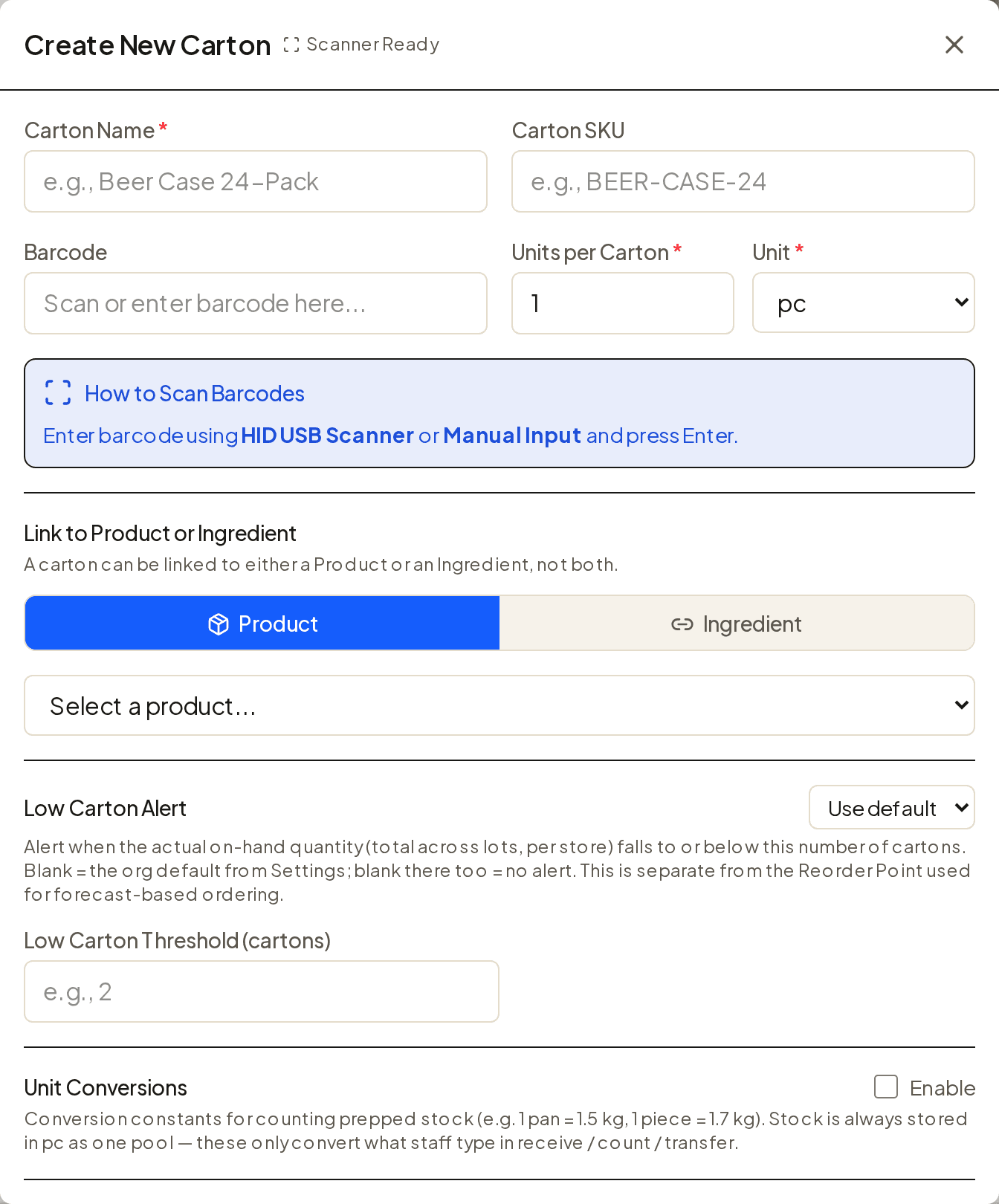
| Field | What to enter |
|---|---|
| Carton Name | What is written on the box — Cola 24-pack, Mozzarella 5 kg. This is the name you will search for when receiving. |
| Carton SKU | Optional. Your own or the supplier's article number. |
| Barcode | Scan the barcode on the box with a USB scanner, or type it. With a barcode, receiving a delivery is one scan per box. |
| Units per Carton and Unit | How many units one carton contains, and what a unit is (pc, kg, L…). Stock is shown in these units, not in boxes. |
| Link to Product or Ingredient | Choose Product and pick the product from step 1. The Ingredient option is for Recipe Manager ingredients — see "Also here" below. |
| Low Carton Alert | Optional. The number of cartons at which you want to be warned. Leave blank to use the organisation default from SettingsCarton Management. |
| Supplier & Cost | Optional. Which supplier it comes from and what a carton costs. The cost shows in Carton Stock when a row is expanded. |
Select Create. The carton appears in the list; the Mapped filter shows only cartons that are linked to a product or ingredient, which is a quick way to spot one you forgot to link.
Receive a delivery
Go to InventoryCarton Stock and select Scan Carton.
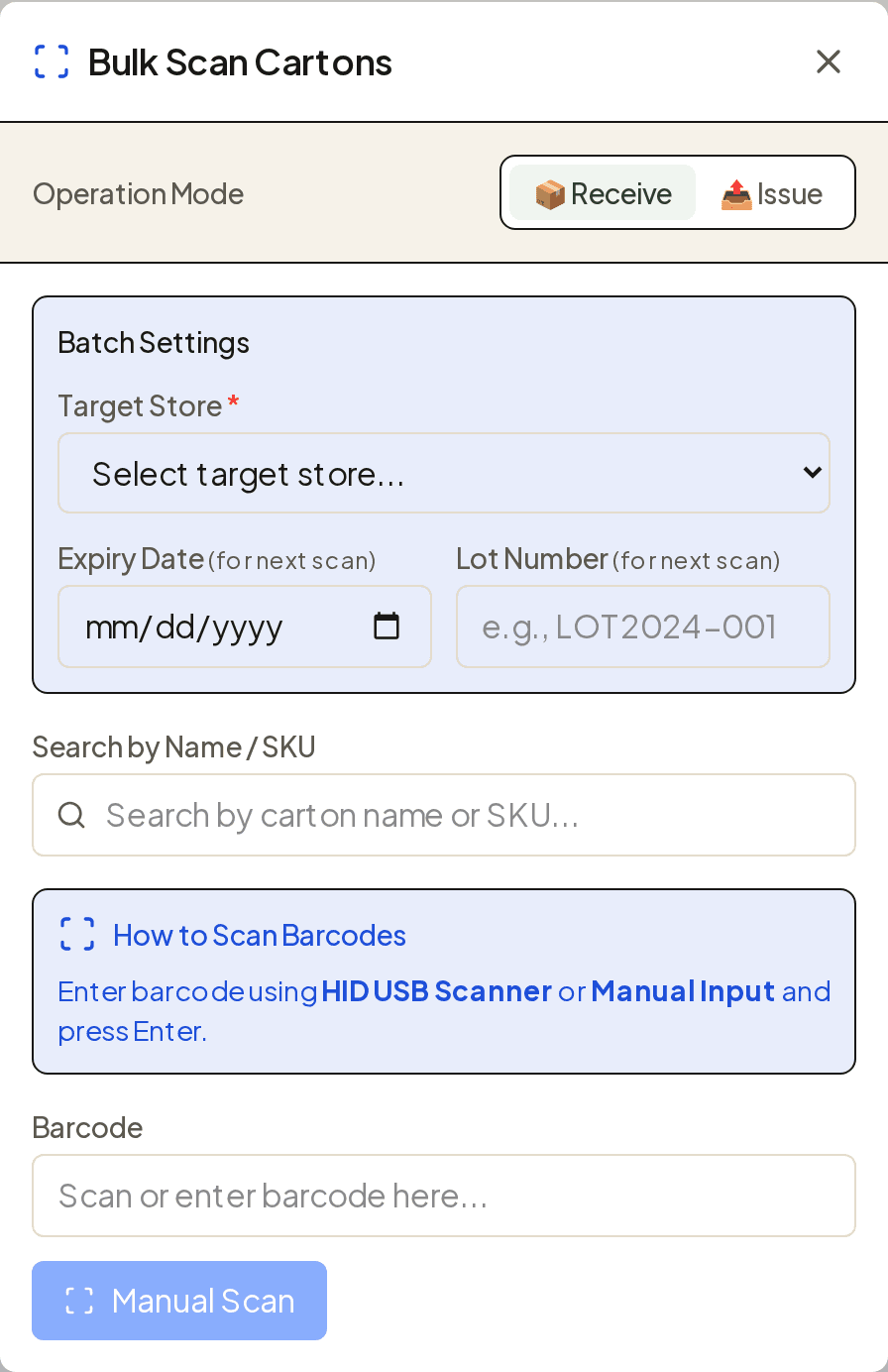
- Leave Operation Mode on Receive.
- Choose the store the delivery is for.
- If the boxes carry an expiry date or lot number, enter them before scanning; they are filled in on the next line scanned and can be changed per line afterwards. Both are optional.
- Scan each box, or type its barcode and press Enter. No barcode? Search the carton by name or SKU instead.
- Check the list and select Receive Cartons.
Each scan adds one carton's worth of units. The row then appears in Carton Stock with its quantity, status and store.
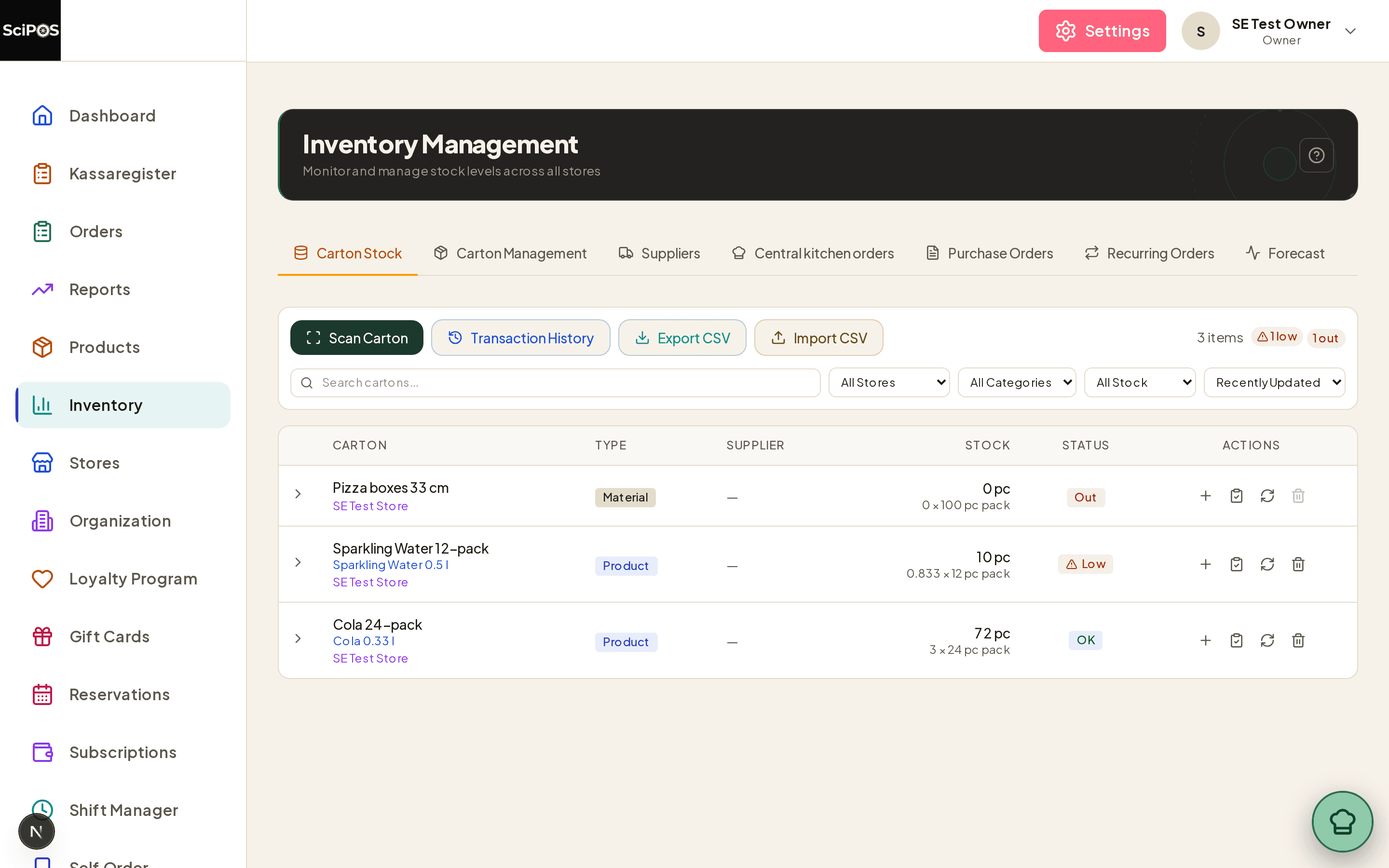
To add stock to a carton that is already listed, use the + button on its row — it opens the same dialog with the carton and store already filled in.
Let sales do the rest
Nothing further is needed. When an order is completed — on the till, a kiosk, a QR table order — each item sold takes one unit off the linked carton at that store. A cancelled item puts it back.
A refund asks first: the refund dialog has a tick box, Restore inventory for refunded items, because a refund on a dish that was already served returns money, not stock. Its starting position comes from SettingsCarton ManagementInventory Defaults.
Where a carton has several batches, the batch with the earliest expiry date is used first. Batches past their expiry date are not counted as stock at all, so the number you see is what you can actually sell.
Counting, waste and corrections
The row buttons in Carton Stock cover the day-to-day adjustments:
- Count (the clipboard icon) — a stocktake. Enter what is physically on the shelf; the difference from the expected figure is recorded as the variance and stock is set to the counted total.
- Scan Carton → Issue — stock that left without a sale: breakage, waste, staff use. Works like receiving, but subtracts.
- Expand a row to see its batches. Each batch has Edit (quantity, lot number, expiry date, reorder point, par level), History, and Transfer to move it to another store.
- Clear stock sets every batch of that carton to zero but keeps the history.
- Transaction History at the top shows every movement, and Export CSV / Import CSV let you take counts out to a spreadsheet and bring them back. An import needs a Carton Name and Stock column.
- Daily refill tops a carton up to a target each day at a time you set — meant for items you prepare in the morning rather than buy in.
Being told before you run out
Two separate warnings exist, and they are set in different places.
Low Carton compares the real quantity on hand with a threshold. Set the threshold per carton in Carton Management, or once for everything under SettingsCarton ManagementInventory Defaults. When stock falls to or below it, the store's devices receive a push notification and the row shows a Low Carton badge. The notification can be switched off per store under Alert Delivery on the same settings tab.
Expiry warns about batches approaching their expiry date, a set number of days ahead, as one daily digest per store. The lead time comes from the carton or the same Inventory Defaults card. A batch with no expiry date is never expiry-tracked.
If neither the carton nor the defaults have a value, there is no alert — blank does not mean "sensible default", it means off.
Suppliers, ingredients and ordering
The other tabs on the Inventory page:
- Suppliers — contact details, order email, delivery fee and lead time for each supplier. Free to use, and the supplier shown on a carton comes from here.
- Ingredient cartons — a carton can be linked to a Recipe Manager ingredient instead of a product. Selling a dish then deducts its ingredients through the recipe. The carton's unit has to convert to the ingredient's unit; a carton that cannot is flagged won't deduct in Carton Stock until a conversion factor is set.
- Central kitchen orders — a branch asking a supplying store for stock, with templates for the regular list.
- Purchase Orders, Recurring Orders and Forecast — part of the Auto Ordering paid feature. Everything above on this page works without it.
Still not working?
| What you see | Most likely cause |
|---|---|
| My product is not in the list when creating a carton | Track inventory is off for that product (step 1), or the product is inactive. Only active, tracked products are offered. |
| Stock did not go down after a sale | No active carton is linked to the product, or the carton is linked to an ingredient whose unit cannot be converted — Carton Stock shows "won't deduct" on that row. Sales only deduct from an active, linked carton at the store the order was placed in. |
| Carton Stock says "No carton inventory records found" | A carton exists but nothing has been received into it yet. Describing a carton (step 2) does not create stock; receiving does (step 3). |
| The product still sells at the till when stock is zero | That is the default. Tick "Auto out-of-stock from inventory" on the product (step 1) if you want it marked sold out automatically. |
| No low-stock alert arrived | The threshold is blank on the carton and in Inventory Defaults, the alert is set to Off, or Low carton delivery is off for that store under Settings › Carton Management › Alert Delivery. Also, the alert fires once when stock crosses the line — not every day it stays below. |
| The number on screen does not match the shelf | Use Count on the row to set the real figure; the variance is kept in the history. Check first that a batch has not expired — expired batches are left out of the total on purpose. |
| Stock went down at the wrong restaurant | Stock is per store and follows the store the order was placed in. Move it with Transfer on the batch row. |