Sciometa POS · How-to guide
Connecting a Network Printer
Add a thermal printer over WiFi or ethernet, and keep it from dropping off the network later.
Give the printer a fixed IP address
Do this before opening the dashboard — it is the step that decides whether the printer keeps working next month.
Most thermal printers can print their own network settings; check the manual for the self-test, which usually means holding the feed button while switching on. Note the IP address it reports.
Add it in the dashboard
Go to SettingsDevicesPrinters and select Add Printer under Network Printers (Direct TCP).
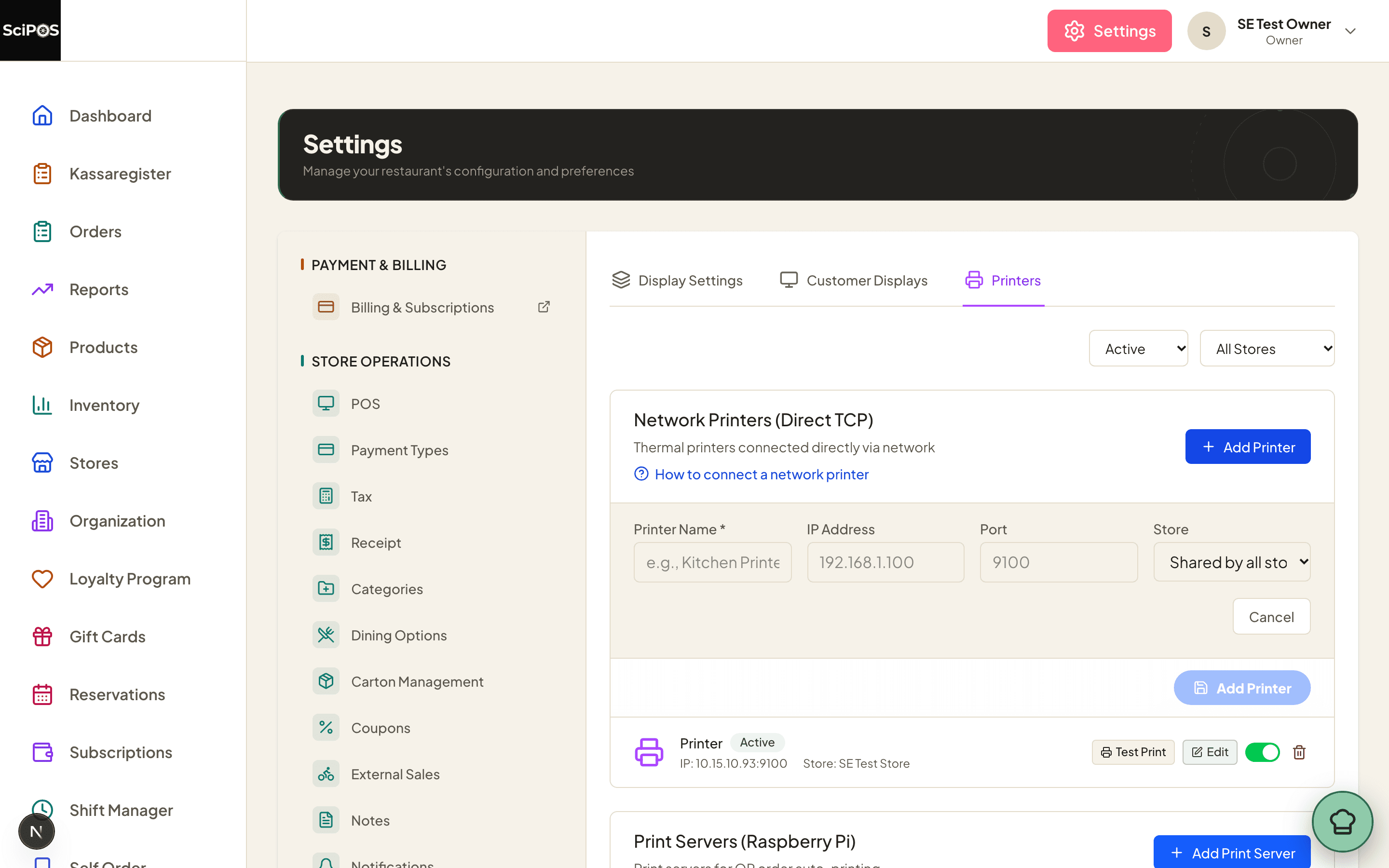
| Field | What to enter |
|---|---|
| Printer Name | What staff call it — Kitchen Printer, Bar Printer. This is the name shown when choosing where something prints, so make it describe the place. |
| IP Address | The address from step 1, for example 192.168.1.100. |
| Port | 9100 unless the printer's manual says otherwise. |
| Store | The restaurant it stands in, or Shared by all stores. |
Select Add Printer to save. It appears in the list below with its address, and a toggle to take it out of service without deleting it.
Check it prints
Send a real order through and confirm the ticket appears. A printer that is listed but silent is almost always one of three things:
- The address changed (step 1).
- It is on a different network from the till — guest WiFi and the staff network often cannot see each other.
- It is switched off, out of paper, or its cover is not fully closed.
Print Servers (Raspberry Pi)
Below the network printers is a separate section for Print Servers. A print server is a small Raspberry Pi that printers connect to, used for printing QR orders automatically.
It is a different mechanism with its own setup, and you do not need one to use a network printer. If you have no Raspberry Pi, ignore this section.
Still not working?
| What you see | Most likely cause |
|---|---|
| Nothing prints, and no error appears | The printer is on a different network from the till, or the IP address has changed since it was added. |
| It printed yesterday and not today | Almost always a changed IP address. Reserve the address in the router (Step 1) so it cannot move again. |
| Saving the printer fails | The IP address is malformed, or that address is already used by another printer in the list. |
| The printer is missing when choosing where to print | It belongs to a different store, or its toggle is switched off in the list. |
| Only part of a ticket prints | Paper or a cover problem on the printer itself, not a configuration one. |