Sciometa POS · How-to guide
Connecting Flatpay for Online Payments
Apply to Flatpay for an online payments contract, then enter the API key they issue so guests can pay from their phones.
Prepare your website first
Do this before you apply, not after. Your application is reviewed by an acquiring bank, and it checks the website where guests will pay. Applications are routinely paused at this point, and the wait is simply added to your setup time.
Your website needs:
| Requirement | Notes |
|---|---|
| Privacy policy | Clearly labelled as such, GDPR-compliant, and reachable from both the homepage and the checkout. |
| Cookie banner | Real consent management, not just a notice. |
| Cookie policy | Separate from the privacy policy. |
| HTTPS | The whole site, not only the checkout. |
| Contact information | A real way for customers to reach the business. |
| Data subject rights | What a customer can ask for, and how. |
| Marketing consent | Only if you send marketing email. |
Contact Flatpay and sign the contract
Get in touch with Flatpay through flatpay.com and ask about their online payments (ECOM) product. Make clear that you need the Frisbii online checkout integration — not only a card terminal for the counter. They are different products, and a terminal contract does not give you what this guide needs.
What to expect:
- A conversation about pricing. Rates are agreed directly between you and Flatpay and are not set by Sciometa.
- Signing the contract, usually in a single session at a computer, and providing the identity and business documents Flatpay asks for.
- Review and approval, including the website check from Step 1.
- Your API key, issued by Flatpay once the account is approved.
- Portal access, sent separately, where you can see transactions and reports.
Enter the key in the dashboard
Open Self Order SystemQR Online Payments — it is under Table Order in the left-hand list.
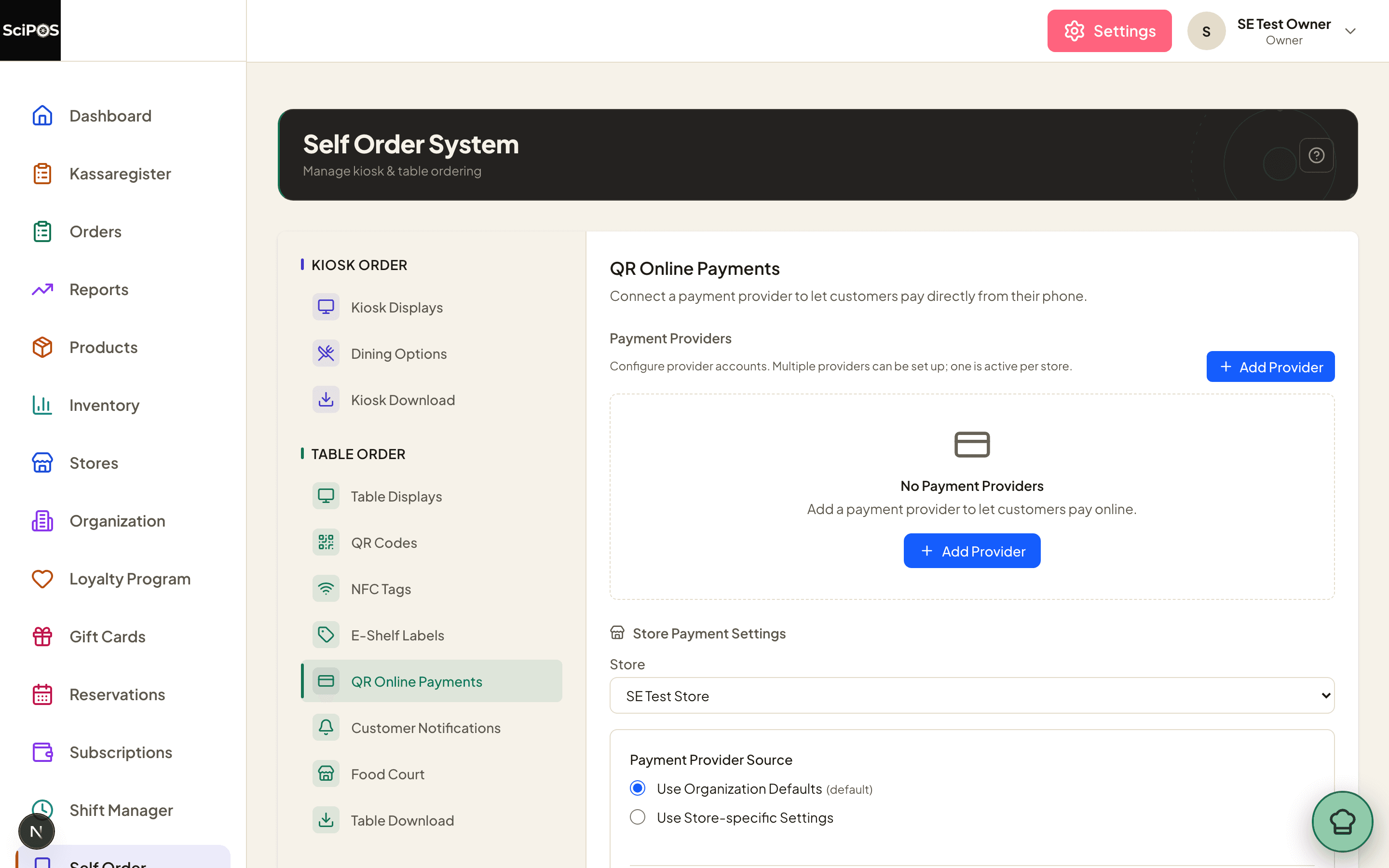
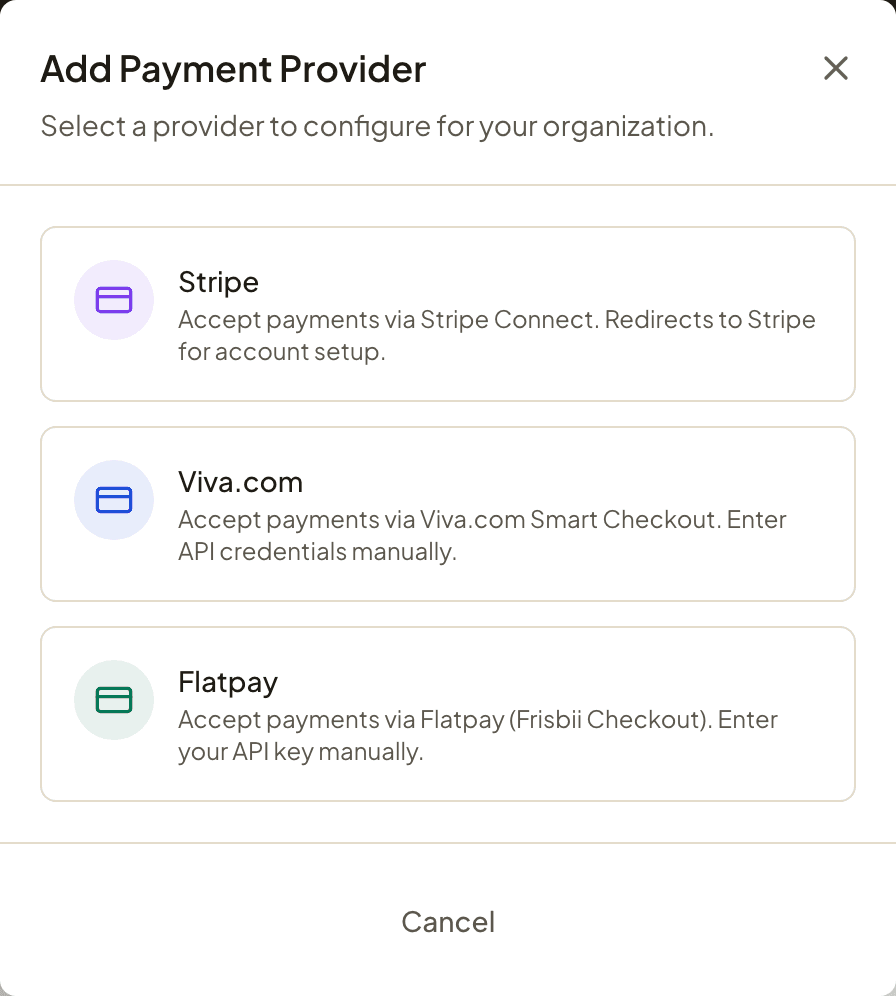
Select Add Provider, then choose Flatpay.
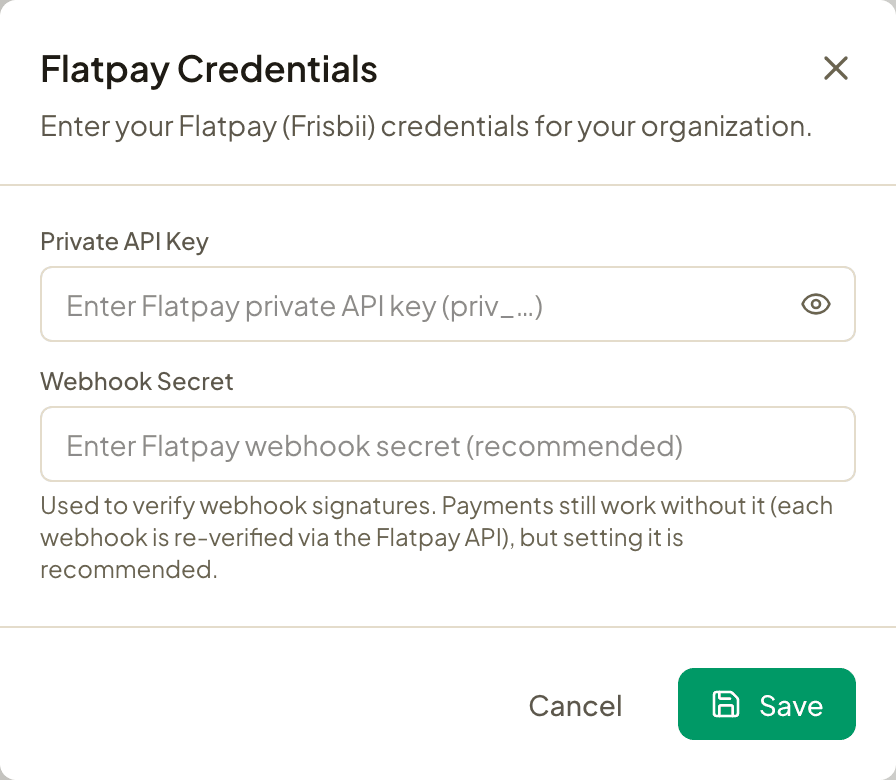
Paste your Private API Key — it begins with priv_. Add the Webhook Secret too if Flatpay gave you one, then select Save.
Then set Default Payment Provider to Flatpay. Saving the key alone does not move your guests across — this is the step that makes Flatpay the provider that actually takes the money.
The badge on the Flatpay row tells you where you stand:
| Badge | Meaning |
|---|---|
| Configured | Private key and webhook secret are both set. |
| No webhook secret | Private key only. Payments work. Add the secret when convenient. |
| Incomplete | A webhook secret without a private key. Payments will not work — the private key is the required one. |
Turn on online payment and test with a real card
Scroll down to Store Payment Settings, pick the restaurant, and leave Use Organization Defaults selected if it should follow the organisation. Switch on Enable Online Payment, then choose under Payment Timing whether guests pay after dining or pay before ordering.
Now make one genuine payment:
- Scan a table QR code with a phone and place a small order.
- The phone should move to a Flatpay-hosted payment page.
- Pay with a real card; a euro or two is enough.
- The phone should return to the ordering page and confirm the payment.
- The order should show as paid in the dashboard and reach the kitchen.
- The payment should appear in Flatpay's portal.
Refund the test from the dashboard afterwards — that also proves refunds work before you need one for a guest.
Apple Pay and Google Pay
Which payment methods appear on the payment page is decided by your Flatpay account, not by Sciometa. We do not restrict them: whatever your account is configured to accept is what guests are offered.
Card payments are unaffected either way. A restaurant without wallet support still takes ordinary card payments from guests' phones.
Still not working?
| What you see | Most likely cause |
|---|---|
| My application has stalled and nobody has said why. | Most often the website check — a missing or hard-to-find privacy policy, or no cookie consent. Fix the items in Step 1 and tell Flatpay you have done so. |
| The Flatpay row says “No webhook secret”. Is it broken? | No. That is an informational state, not an error — payments work with the private key alone, because every notification is re-verified against Flatpay’s API. Add the secret when you have it. |
| The Flatpay row says Incomplete. | A webhook secret has been entered but the Private API Key has not. The private key is the required one; the secret on its own does nothing. |
| Every real card is declined, but the setup looks right. | Most likely a test key rather than a live one — the key value itself decides which account it is scoped to. Ask Flatpay to confirm you have the live key. |
| Apple Pay and Google Pay are missing from the payment page. | They are controlled by your Flatpay account, not by Sciometa. We do not restrict payment methods — whatever your account allows is offered. Raise it with Flatpay. |
| Guests are not offered card payment at all. | Either Enable Online Payment is off, or Default Payment Provider is still another provider. Saving the key does not select Flatpay. |
| A guest paid but the order is not marked paid. | Contact support. Payments are confirmed against Flatpay directly, so the money is not lost — the order usually settles by itself shortly afterwards. |
| I want the money to go to a different bank account. | Payouts follow the account registered on your Flatpay contract. Ask Flatpay’s customer service to change it; it cannot be changed from the Sciometa dashboard. |
| Where do I see my transactions and reports? | In Flatpay’s own portal, using the login they send you after approval. The Sciometa dashboard shows the orders; Flatpay shows the settlements and payouts. |
| I already have a Flatpay card terminal. Can I use that contract? | Not automatically. Card terminals and online payments are separate products, and online payments need their own approval and their own API key. Ask Flatpay to add the ECOM product to your account. |
| The QR Online Payments tab is greyed out and will not open. | The restaurant is not subscribed to Table Order System. The whole Table Order group stays dimmed until it is. |