Sciometa POS · How-to guide
Food Court Ordering
Join a shared-venue QR code so diners can order from your stall on their phone, and keep yourself listed once you are in.
Accept the invitation
Food courts are created by Sciometa, not by tenants. Once the venue adds your restaurant, the invitation appears in Self OrderTable OrderFood Court.
The panel is headed Food court and lists each venue by name with its status:
| Status | What it means |
|---|---|
| Waiting for your approval | The invitation is open. Select Join. |
| Participating | You are listed, and diners can order from you. |
| You are not participating | You declined, or you left later. Join puts you back. |
If no invitation is showing, the panel stays hidden — most restaurants are not in a food court, so there is nothing to show. If it says it could not load your food court invitations, that is a stale sign-in rather than a missing invitation: sign out and back in, then Retry.
Leave takes you off the hub. Orders already placed and paid are unaffected; you simply stop appearing to new diners.
Switch on online payments — this is what makes you visible
Food court ordering is pay-before only, and online payment is the only way to pay. A diner pays in the app as they order; there is no bill to settle afterwards.
This is not a preference you can change, and it does not follow your own tables' setting. If your restaurant takes payment after dining at its own tables, that stays true for your tables and does not apply in the food court.
So the requirement is absolute: without online payments switched on and connected, you cannot take a single food court order. Depending on how the venue is set up you will either be missing from the diner's list entirely, or listed as Menu only — diners can read your menu and are told to order at the counter, but there is no cart.
Either way you can be approved and still taking no orders, with nothing on the Food Court tab to explain it. This is the reason in nearly every case, and it is the one thing on this page only you can fix.
Set it up in Self OrderTable OrderQR Online Payments: switch on Enable Online Payment and make sure your payment provider shows as connected. Connecting the account itself is a one-off job covered in Connecting Stripe for Online Payments.
Set your opening hours
The hub shows your restaurant as closed outside your hours, and the check runs again when the diner submits — so a phone left on a table cannot order after you shut.
Both fields are on the store: DashboardStores → edit the store → Opening Hours.
- Tick each day you trade and enter its opening and closing time. Leave a day unchecked to mark it Closed. There is no "copy to all days" button, so each day is set on its own.
- Times are in your organisation's local timezone, not the diner's phone.
- For hours that run past midnight, set the closing time earlier than the opening time — 22:00 → 02:00 means open until 2am the next morning.
- Kitchen closing time — minutes before closing — stops online orders early. Set 30 and the last order on a 22:00 night is 21:30. Leave it at 0 to take orders up to closing.
Diners who arrive outside your hours see your card marked Closed, with Opens at 11:00 or Opens Tue 11:00, and closed restaurants sort below open ones. After your kitchen cutoff they see Kitchen is closed and Last orders were at 21:30. The card stays tappable so they can read the reopening time, but they cannot order.
Stop and restart ordering during service
Opening hours are the schedule. When you need to stop now — you have sold out, the fryer is down, or a queue has got away from you — use the Mobile Order switch in the Sciometa POS app on your till.
Open the Self Order System page. The switch sits in the header bar at the top:
- If you run more than one restaurant, pick the right one in the dropdown beside the switch. The switch applies to the restaurant named in that dropdown, not to all of them — and it does not always follow the restaurant you selected elsewhere in the app, so read the name before tapping.
- Tap the switch so it reads OFF. A Mobile Ordering Paused confirmation appears.
- Tap it back to ON when you are ready. That confirms Mobile Ordering Resumed.
The pause takes effect immediately, not at the next scan — a diner already holding your menu open is told without reloading anything:
- On the hub, your card reads Not taking orders right now.
- A diner already in your menu sees Ordering is temporarily paused. Please wait. in the cart, with the pay button disabled.
That immediacy is the difference between this switch and your opening hours. Nothing tells an idle phone that the kitchen just reached its cutoff, but the pause is pushed to phones already at the table — so this is the right control for stopping mid-service.
Ordering from a shared table
Worth walking once on your own phone before the venue opens — it is the only check that covers the whole chain in the order a diner meets it.
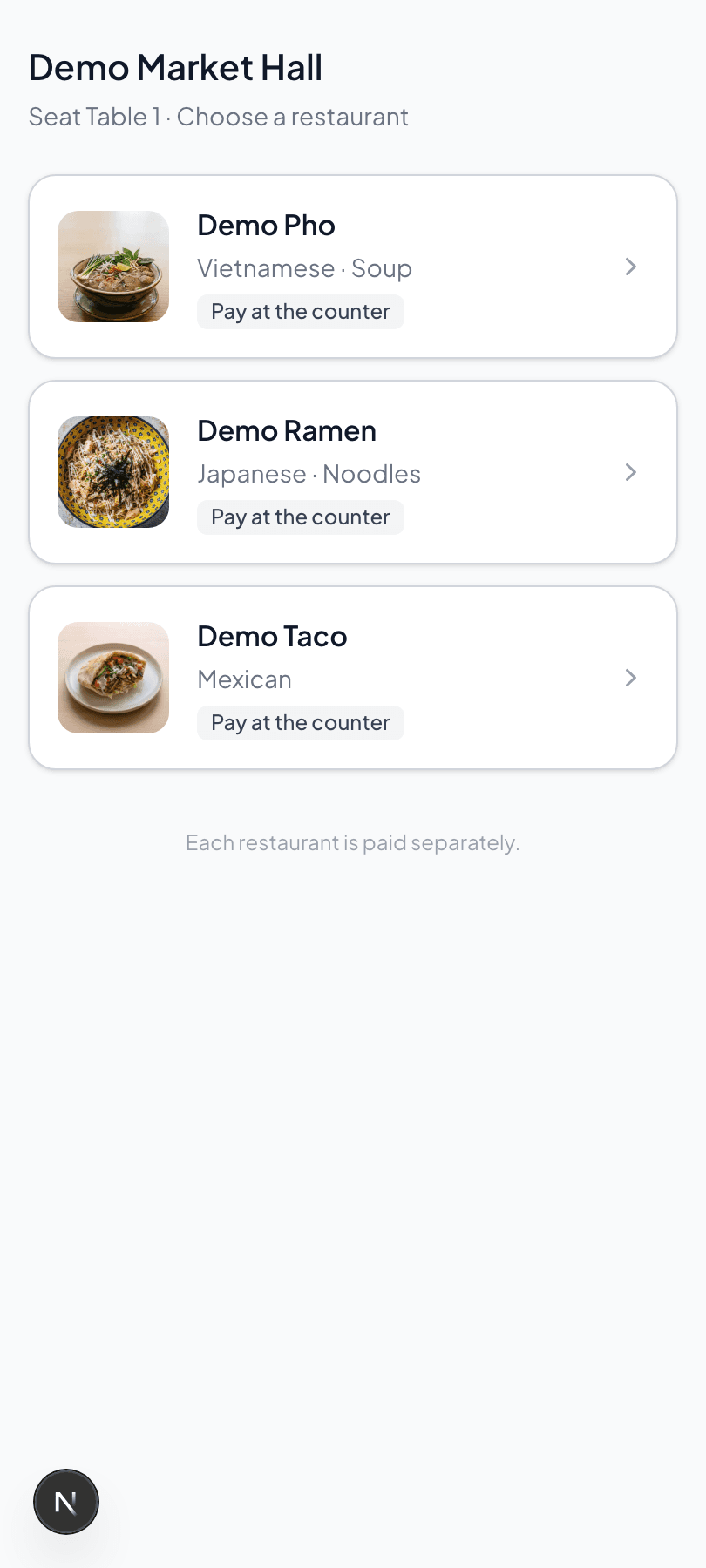
- Scan the shared code. The hub opens in the browser; there is nothing to install. The heading reads Choose a restaurant, or Seat 12 · Choose a restaurant where the venue labels its seats.
- Pick a restaurant. Cards show each restaurant's name and logo, with closed ones greyed and sorted last. The hub notes that Each restaurant is paid separately.
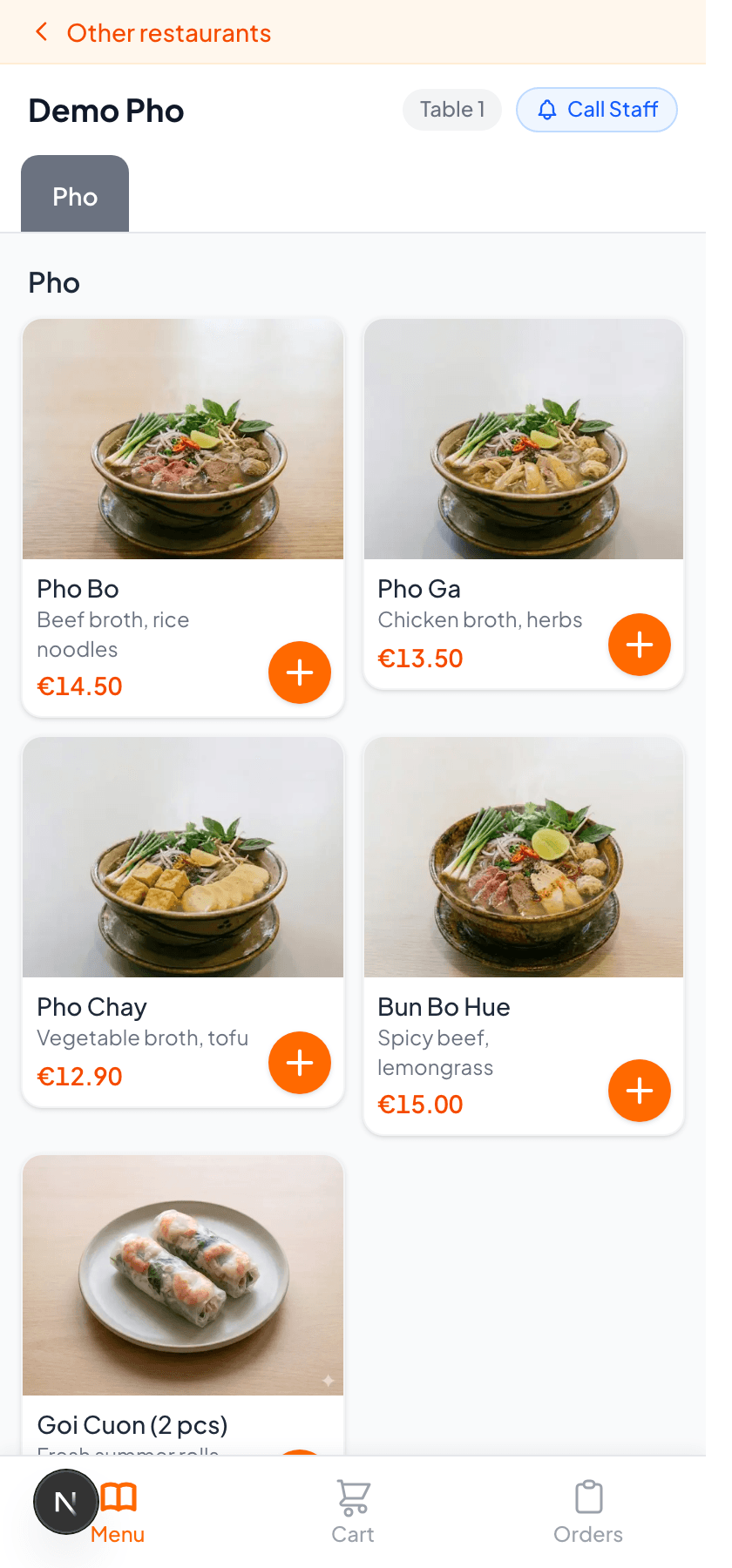
- Order. Your menu opens as it does for table ordering — tap a dish for its options, or use the one-tap + on dishes with no choices.
- Pay in the app. Checkout is Pay in app; the order reaches your kitchen only once payment clears.
- Collect. Once paid, the diner is shown a Collect from block naming where to come for the food — which is why the venue labels your stall.
- Order from somewhere else. An Other restaurants bar runs along the top of your menu, and the hub keeps a Your orders list — so one diner can get a main from you and a dessert from a neighbour. Each is a separate order and a separate payment.
If you have ready notifications switched on, the message names your restaurant and the stall the diner should collect from, which is what they need in a hall where they cannot see your counter from their seat.
How a food court differs from your own tables
| Your own tables | Food court | |
|---|---|---|
| Who prints the code | You, per table | The venue, per shared seat |
| When guests pay | Your choice — before or after | Always before, online only |
| Table PIN | On by default, protects an open bill | None — there is no shared bill to protect |
| Appears on your table map | Yes | No; already paid |
| Menu | Your Table-flagged menu | The same menu |
| Leaving | Switch table ordering off | Leave on the Food Court tab |
The practical consequence is that a food court stall is closer to a takeaway counter than to table service: money is collected before the kitchen starts, and the diner comes to you.
Before the venue opens
| Step | Where | |
|---|---|---|
| ☐ | Accept the invitation — status reads Participating. | Table Order → Food Court |
| ☐ | Switch on Enable Online Payment and confirm the provider is connected. | Table Order → QR Online Payments |
| ☐ | Enter opening hours, and a kitchen cutoff if you stop early. | Stores → edit store |
| ☐ | Check your Table menu is right for food carried to a shared table. | Menu Configuration → Categories, and Products |
| ☐ | Add the languages your venue's visitors read. | Menu Configuration → Languages |
| ☐ | Add option groups to anything upsellable. | Products → Product Options |
| ☐ | Scan the venue's code and place a real, paid order. | Your phone |
| ☐ | Confirm it reaches the kitchen screen with the seat on it. | Your kitchen display |
| ☐ | Know where the Mobile Order switch is before you need it mid-rush. | POS app → Self Order System |
The scan test is the one that matters. It is the only check that proves the whole chain — invitation, payment, hours, menu and kitchen routing — in the order a diner meets it.
Still not working?
| What you see | Most likely cause |
|---|---|
| The Food Court tab shows nothing at all | No venue has invited this restaurant yet, so there is nothing to accept. Food courts are created by Sciometa — ask the venue to add you, and check you have the right restaurant selected. |
| Status says Participating, but the restaurant is not on the hub | Almost always online payments. Food court ordering is pay-before only, so a restaurant that cannot charge is hidden rather than listed. Switch on Enable Online Payment in QR Online Payments and confirm the provider is connected. |
| Participating, payments connected, still not listed | The venue can hide a restaurant from its side, and the whole food court can be inactive. The tab says so — "hidden by the food court right now" or "this food court is not active". Neither is something you can change; contact the venue. |
| The card says Not taking orders right now | Mobile Order is switched OFF for that restaurant in the POS app. It stays off until switched back on — there is no overnight reset. |
| Looking for the pause switch in the web dashboard and not finding it | It is only in the POS app, on the Self Order System page header. The "Store is active and accepting orders" checkbox on the store form is a different, much broader setting — unticking it takes the whole restaurant out of service, so do not use it to pause for an hour. |
| Diners are told the kitchen is closed while the stall is open | Kitchen closing time is stopping orders early. It is minutes before closing, not a clock time — 30 means the last order is half an hour before you close. |
| Orders arrive overnight when nobody is at the stall | No opening hours are set for that store, so there is nothing for the gate to apply. Enter them on the store. |
| Diners reach payment and it fails | The payment account is connected but not usable — restricted, or left in test mode. Listing only checks that credentials exist, so this surfaces at checkout. Check the account itself. |
| Food court orders cannot be found on the table map or in open bills | That is intended: they arrive already paid, with the venue seat rather than one of your tables. Look on the kitchen display and in Order History. |
| Diners are asked for a phone number or email before they can order | WhatsApp or Email ready-notifications are on, which makes contact details mandatory at checkout. In a food hall these are usually worth keeping, since diners are not sitting where you can call them. |
| A dish the kitchen can make is missing from the food court menu | The food court uses your table-ordering menu. Its per-store Table flag is off in Products, or its category is switched off for Table — or the category is outside its weekly time window right now. |
| The card shows Menu only and diners cannot order | Your restaurant cannot take an online payment, so the venue is listing your menu for browsing instead of hiding you. Whether unpaid restaurants are hidden or shown this way is the venue's choice, but the fix is yours: connect online payments. |
| A diner is told to scan again because the restaurant now takes payment when ordering | They are holding a link from before the food court became pay-before. Scanning the code on the table starts a fresh, prepaid order. |
| A diner says the code on their table is no longer valid | The venue regenerated that seat’s code, so the printed one is dead. Only the venue can reissue it. |